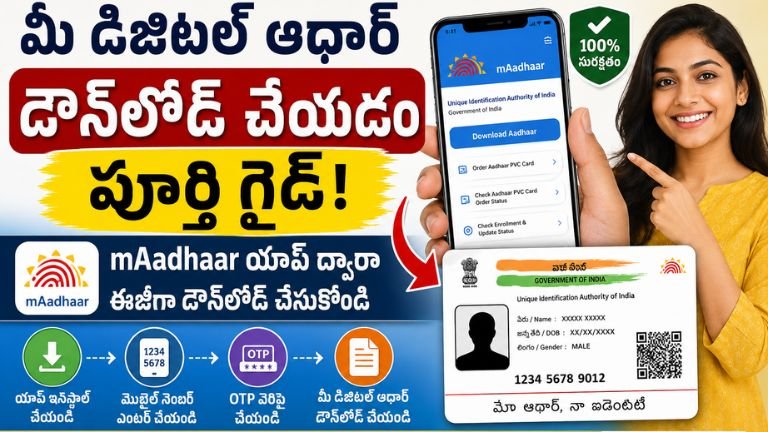
The Complete Guide to Downloading Your Digital Aadhaar via the mAadhaar App
In today’s digital-first world, carrying a bulky physical wallet everywhere feels increasingly outdated. Fortunately, your most essential identity proof can live securely right on your smartphone. The Unique Identification Authority of India (UIDAI) provides an incredibly convenient official mobile application called mAadhaar that allows you to download and manage your digital Aadhaar anytime, anywhere.
Whether you’ve misplaced your physical card or simply want a backup copy handy for quick KYC verification, this comprehensive step-by-step blog post will guide you through the process of downloading your e-Aadhaar via the mobile app.
Why Use the mAadhaar App?
While you can always download your digital Aadhaar from the official web portal, using the mAadhaar app brings unique advantages to your smartphone:
-
Ultimate Portability: Your digital identity is stored securely on your phone, eliminating the risk of losing or damaging a paper copy.
-
Legally Recognized: Under the Aadhaar Act, a digitally signed e-Aadhaar is completely equivalent to a physical copy for all official and banking services.
-
In-built QR Code: The app features a secure, offline QR code that authorities can scan for instant verification without disclosing sensitive details.
-
One-App, Multi-Profile: You can add and manage up to five Aadhaar profiles of your family members on a single smartphone app (provided they share the same registered mobile number).
Prerequisites Before You Begin
To complete the download process smoothly, make sure you have the following ready:
-
Registered Mobile Number: Your mobile number must be linked to your Aadhaar records. The system will send a secure, time-sensitive One-Time Password (OTP) to this number. If your mobile number isn’t linked, you will need to update it physically at an authorized Aadhaar Seva Kendra first.
-
Stable Internet Connection: Ensure your phone has active mobile data or a reliable Wi-Fi connection.
-
One of These Three Details:
-
Your 12-digit Aadhaar Number
-
Your 16-digit Virtual ID (VID)
-
Your 28-digit Enrollment ID (EID) found on your enrollment slip
-
Step-by-Step Guide: How to Download Digital Aadhaar on mAadhaar App
Follow these simple instructions to download and set up your digital card:
Step 1: Download and Set Up the Official App
-
Open the Google Play Store (Android) or the Apple App Store (iOS).
-
Search for “mAadhaar” and look for the official app published by the Unique Identification Authority of India (UIDAI). Download and install it.
-
Launch the app, grant the necessary permissions (like location and camera, which are required for security verification), select your preferred language, and accept the Terms and Conditions.
Step 2: Access the Download Option
-
On the main dashboard of the app, locate and tap on the “Download Aadhaar” button.
-
You will see options to download your digital identity using your Aadhaar Number, Virtual ID (VID), or Enrollment ID (EID). Select the method you prefer (the 12-digit ID number is generally the fastest).
Step 3: Choose Your Privacy Level (Regular vs. Masked)
Before entering your data, the app will ask whether you want a Regular Aadhaar or a Masked Aadhaar:
-
Regular Aadhaar: Displays your full 12-digit ID number. Use this for bank account openings, passport applications, and official government registries.
-
Masked Aadhaar: Replaces the first 8 digits with “XXXX-XXXX-“, revealing only the last 4 digits. Choose this if you are sharing your document with private entities (like hotels or security desks) to maximize your privacy.
Step 4: Enter Details and Request OTP
-
Carefully type in your chosen ID format (e.g., your 12-digit number).
-
Enter the numeric Captcha Security Code exactly as it appears on the screen.
-
Tap on “Request OTP”.
Step 5: Verify and Download the PDF
-
A 6-digit OTP will be texted to your registered mobile number.
-
Type the OTP into the app’s prompt and click “Verify & Download”.
-
Once successfully verified, the app will automatically download the electronic file directly into your phone’s secure storage.
Crucial Step: Unlocking Your Password-Protected PDF File
Because your digital document contains highly personal data, the downloaded PDF file is heavily encrypted with an automatic 8-character password.
The Password Formula: The first four letters of your name in CAPITAL LETTERS (exactly as printed on your card) combined with your Year of Birth in YYYY format.
Common Password Examples:
| Name on Card | Year of Birth | Correct PDF Password |
| Suresh Kumar | 1992 | SURE1992 |
| Anil Singh | 1985 | ANIL1985 |
| R. Prasad | 1978 | R.PR1978 (Note: Spaces or dots count as characters) |
| Om Sharma | 2001 | OMSH2001 (For 2-letter names, it continues into the last name) |
Helpful Safety Tips for Managing Your Digital ID
To ensure your personal information remains safe from unauthorized access, consider adopting these smart digital habits:
-
Never Share Your Password: Keep the combination to your digital PDF private.
-
Avoid Public Devices: Avoid logging into your profile or downloading the document using cyber-café computers or public Wi-Fi networks.
-
Lock Your Biometrics: The mAadhaar app features a built-in toggle switch to lock or unlock your biometrics. Keeping them locked prevents any unauthorized physical scans at external points.
By keeping the official mAadhaar app configured on your device, your identity proof stays just a few secure taps away whenever you need it!